Job Templates
Overview
Job templates help teams create consistent jobs for repeat work. A template stores the standard setup information that should be reused when a new job follows a familiar pattern.
Use templates for work types that share similar work site rules, description format, custom attributes, review assignees, or notification groups. Templates reduce manual entry and help users avoid missing required information during job creation.
Template List
The template list is where users review, create, edit, archive, and unarchive reusable job templates. Archived templates can be shown or hidden from the list.
Each template row shows the template name and the attributes included in that template. Keep template names clear and specific so a dispatcher can choose the right template without opening several similar records.
Create a Template
Create a template when a job type is repeated often enough that users should not build it from scratch each time.
A useful template usually includes:
- Name of the template. This should be clear and specific so a dispatcher can choose the right template when creating a job.
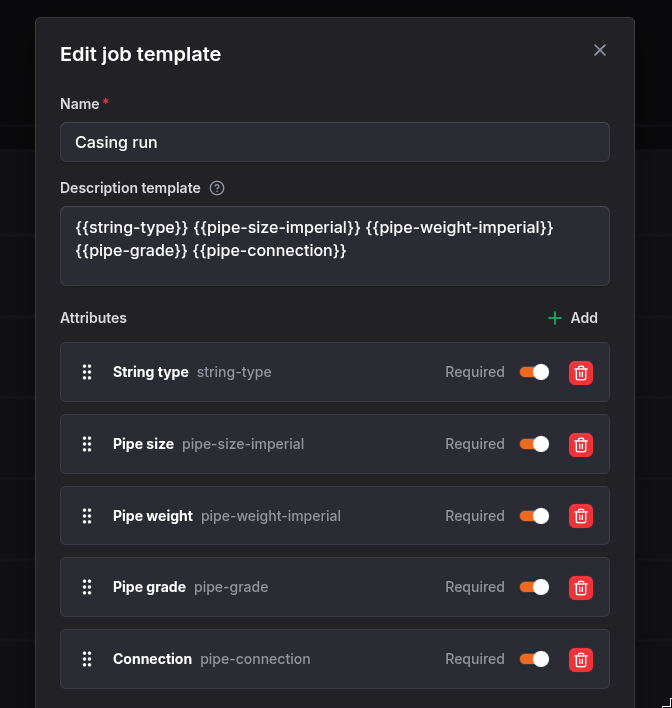
- The description template will be used to format job descriptions for jobs created from the template. You can re-order the description template attributes to control how they appear in the job description. You can also add dashes, colons, or other punctuation to format the description.
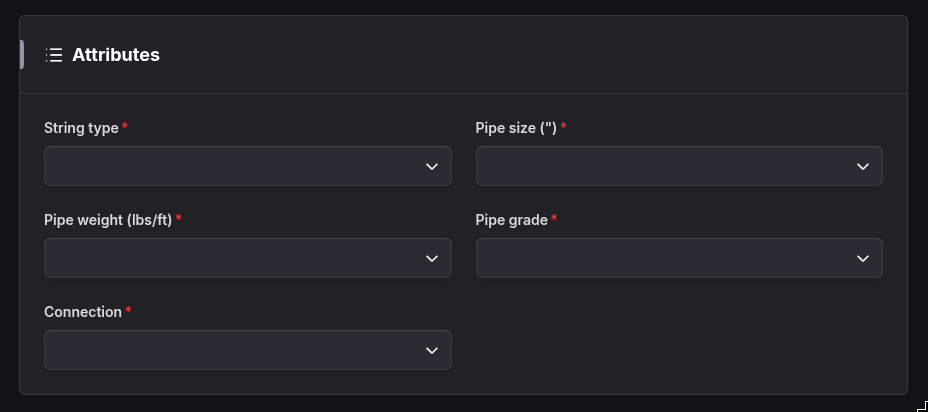
- The custom job attributes that should be captured for that work type. You can choose to make attributes required for jobs created from the template, and you can re-order the attributes to control how they appear in the job creation form.
- The work site type. This will pre-select the work site type for jobs created from the template, and can be changed for individual jobs if needed.
- A default well location system when well location information is used.
- An invoice assignee. This is the user who will be assigned to create the invoice for jobs created from the template.
- A timesheet assignee. This is the user who will be assigned to review timesheets for jobs created from the template.
- Notification groups. These groups will be pre-selected for jobs created from the template, and can be changed for individual jobs if needed.
Avoid putting one-off job details in a template. Templates should describe the reusable pattern, not a specific customer visit or single field event.
Edit Template:
Changing a template affects future jobs created from that template. Treat templates as starting points for new work, and confirm whether already-created jobs need separate updates.
Description Template
Description templates use job attributes to build consistent job descriptions. When composing a description template, use the attribute slug in double braces, such as {{casing-size}}.
The slug needs to match the attribute slug exactly, including hyphens and capitalization. The description template can include punctuation, dashes, colons, or other formatting to make the job description clear.
When a job is created from the template, FieldWRX can use the entered attribute values to format the job description. This keeps job descriptions consistent across dispatch, billing, payroll, and reports.
Example description template:
{{string-type}} {{pipe-size-imperial}} {{pipe-weight-imperial}} {{pipe-grade}} {{pipe-connection}}
Given the following attribute values:
- string-type:
Intermediate - pipe-size-imperial:
7(inches) - pipe-weight-imperial:
23.00(pounds per foot) - pipe-grade:
L-80 - pipe-connection:
Tenaris Blue
The formatted job description will be:
Casing run - Intermediate 7" 23.00lbs/ft L-80 Tenaris Blue
Job attribute units:
If you have selected a unit for an attribute, the unit will be included in the job description. If you have not selected a unit, the attribute value will be used as-is.
Template Attributes
Add attributes to a template when users should enter those values for jobs created from the template. Template attributes can be marked required when the job should not proceed without the value.
The attribute order controls how fields appear to users during job creation and editing. Put the most important fields first.