Customers
Overview
Customers are the organizations your team performs work for and bills in FieldWRX. A customer record keeps the organization’s information, billing settings, contacts, documents, document extraction models, and activity history together.
Keeping customer records current helps users select the right customer and contacts when creating jobs and gives billing teams the information they need to process invoices.
Customer List
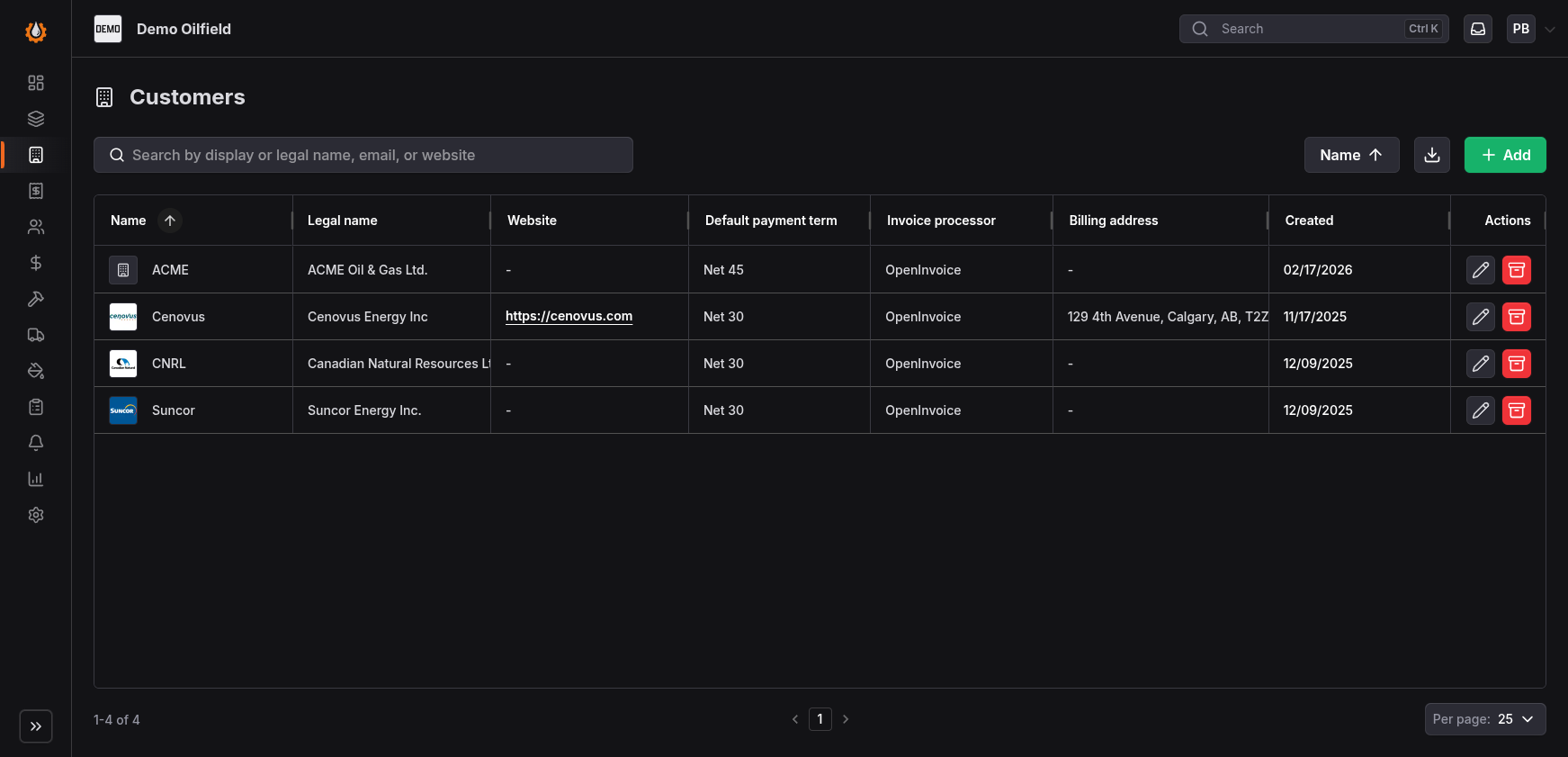
The customer list is the starting point for finding and maintaining customer records. You can search the list and add, edit, or archive customers from the available actions.
Select a row to open the customer details.
Customer Details
Customer details are organized into five tabs: Overview, Contacts, Documents, Document extraction, and Activity.
Overview
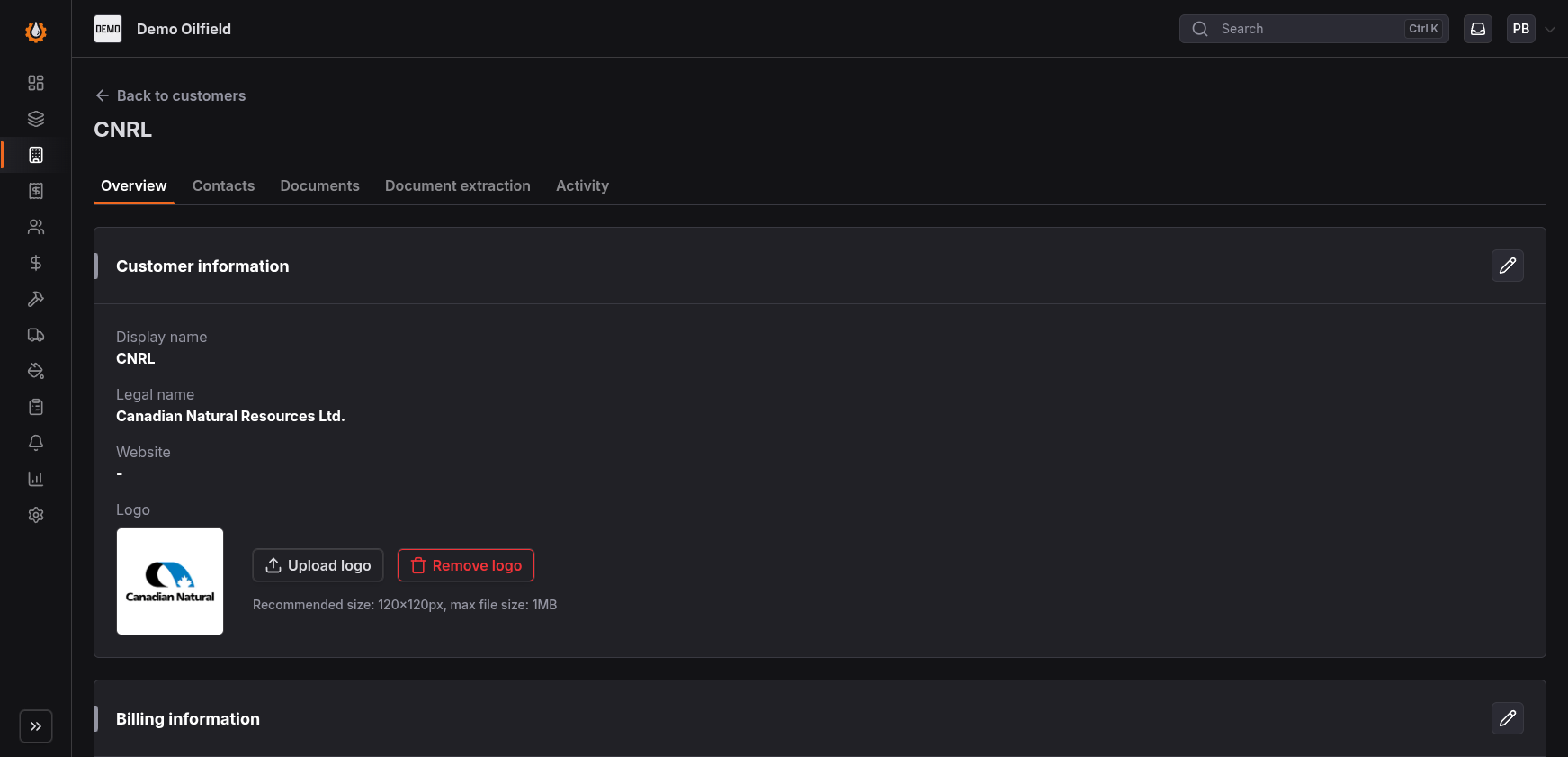
The Overview tab contains the customer’s profile and billing information.
Customer information includes the display name, legal name, website, and logo when provided. Billing information includes the default payment term, invoice processor, and billing address.
Invoice information:
The legal name, default payment term and billing address are used for generating invoices and other billing documents.
Contacts
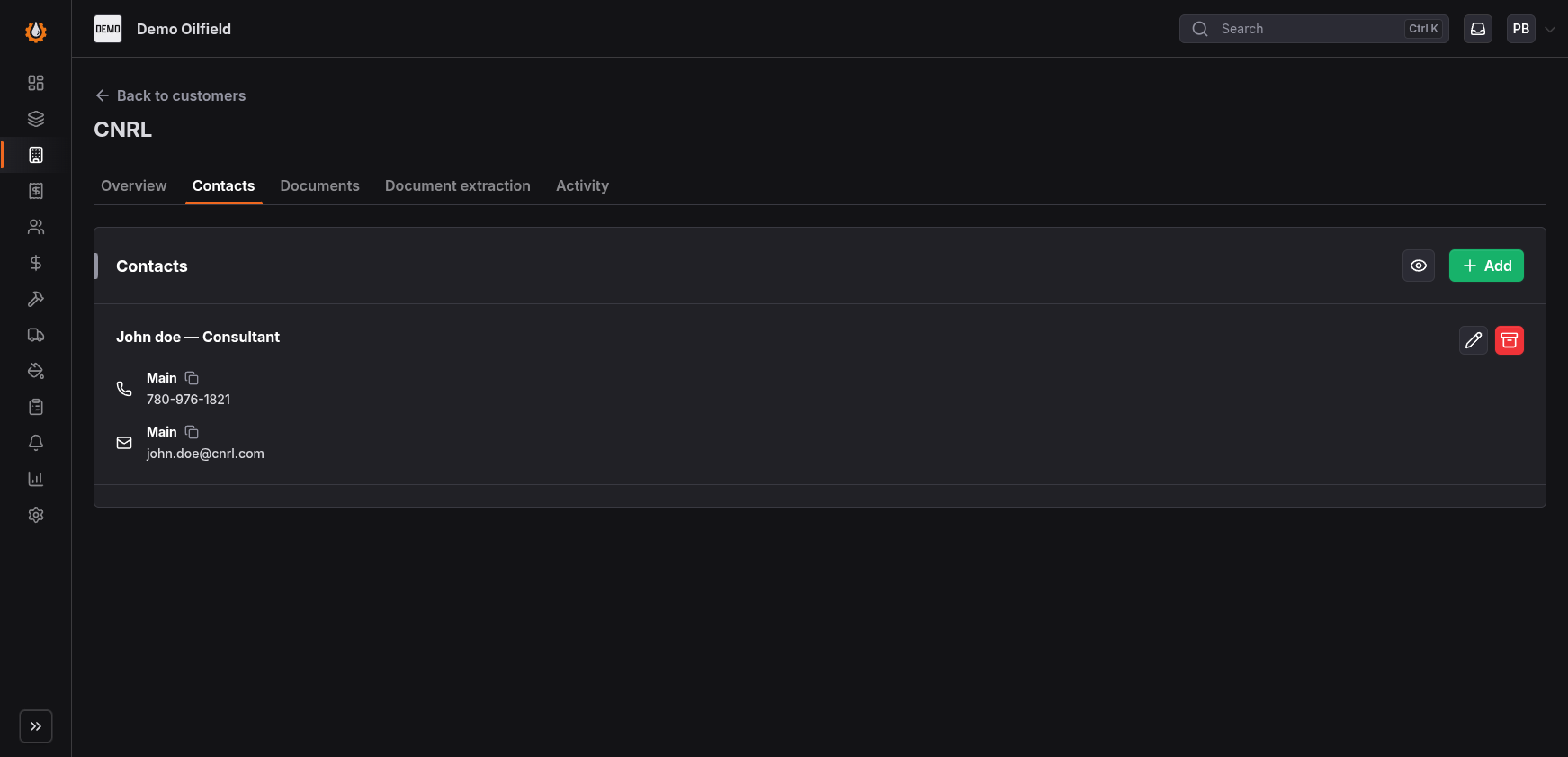
The Contacts tab contains the people associated with the customer. These contacts are available for selection when users create or edit a job for that customer.
After selecting the customer on a job, add the appropriate customer contacts to make their information available with the job. This helps internal users and field crews know who to contact for the work or billing purposes after the job is done.
For more information about adding contacts to jobs, see Jobs.
Documents
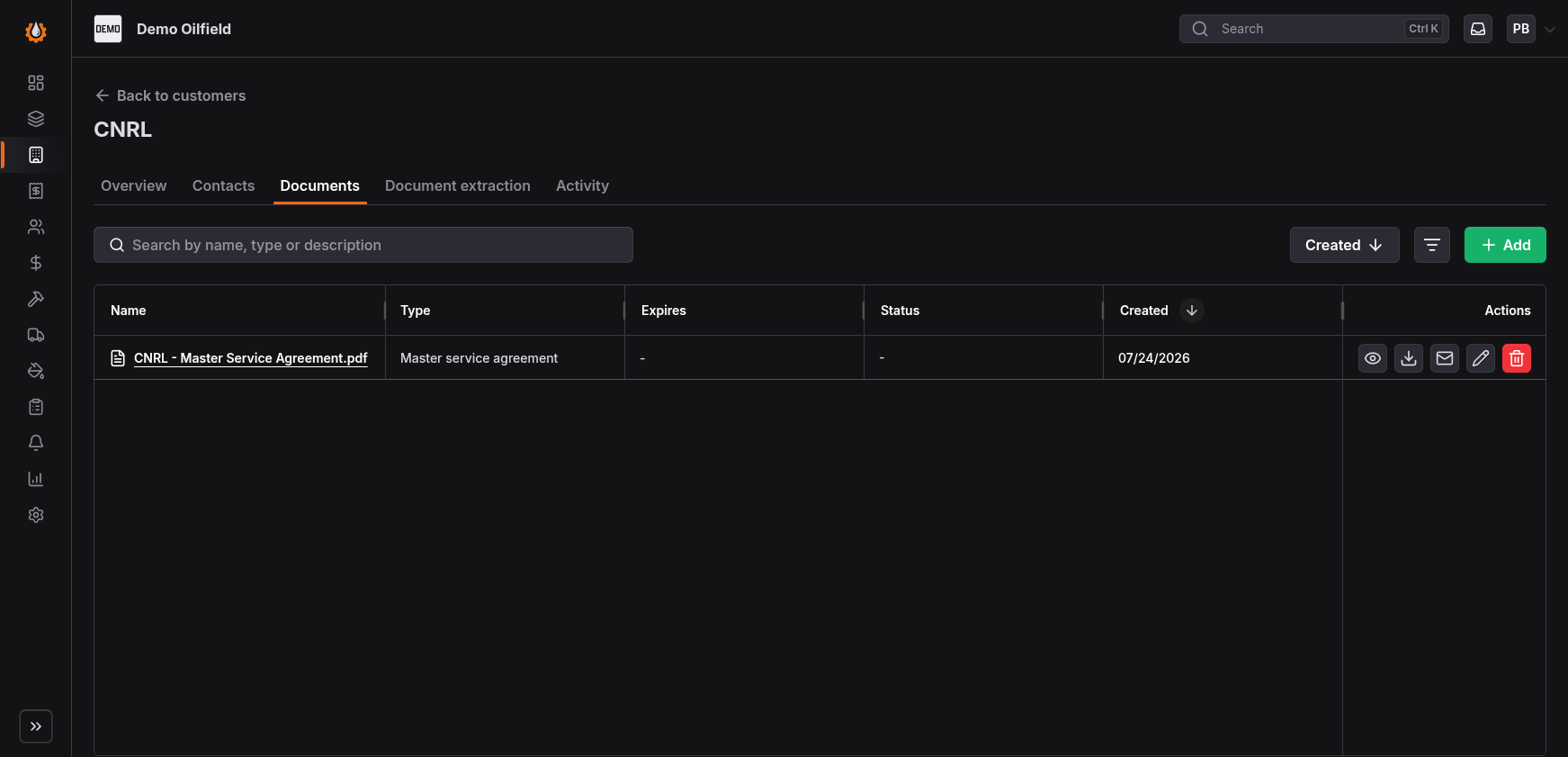
The Documents tab stores files that apply specifically to the customer. Use it for customer-level reference material that should remain with the customer record.
Documents that apply only to an individual job should be stored on that job instead. This keeps customer-wide information separate from files related to one piece of work.
Document Extraction
Document extraction models tell FieldWRX which metadata to extract from supported billing-related documents for a customer. Models can be used with documents such as approved tickets, work orders, or approved invoices.
This feature is customer-specific because different customers may use different document layouts, terminology, and billing references.
Feature availability: The Document extraction tab is only available when the document extraction feature is enabled for your organization. You can enable this feature in the Settings > Features page. Additional charges apply per document.
How Extraction Models Work
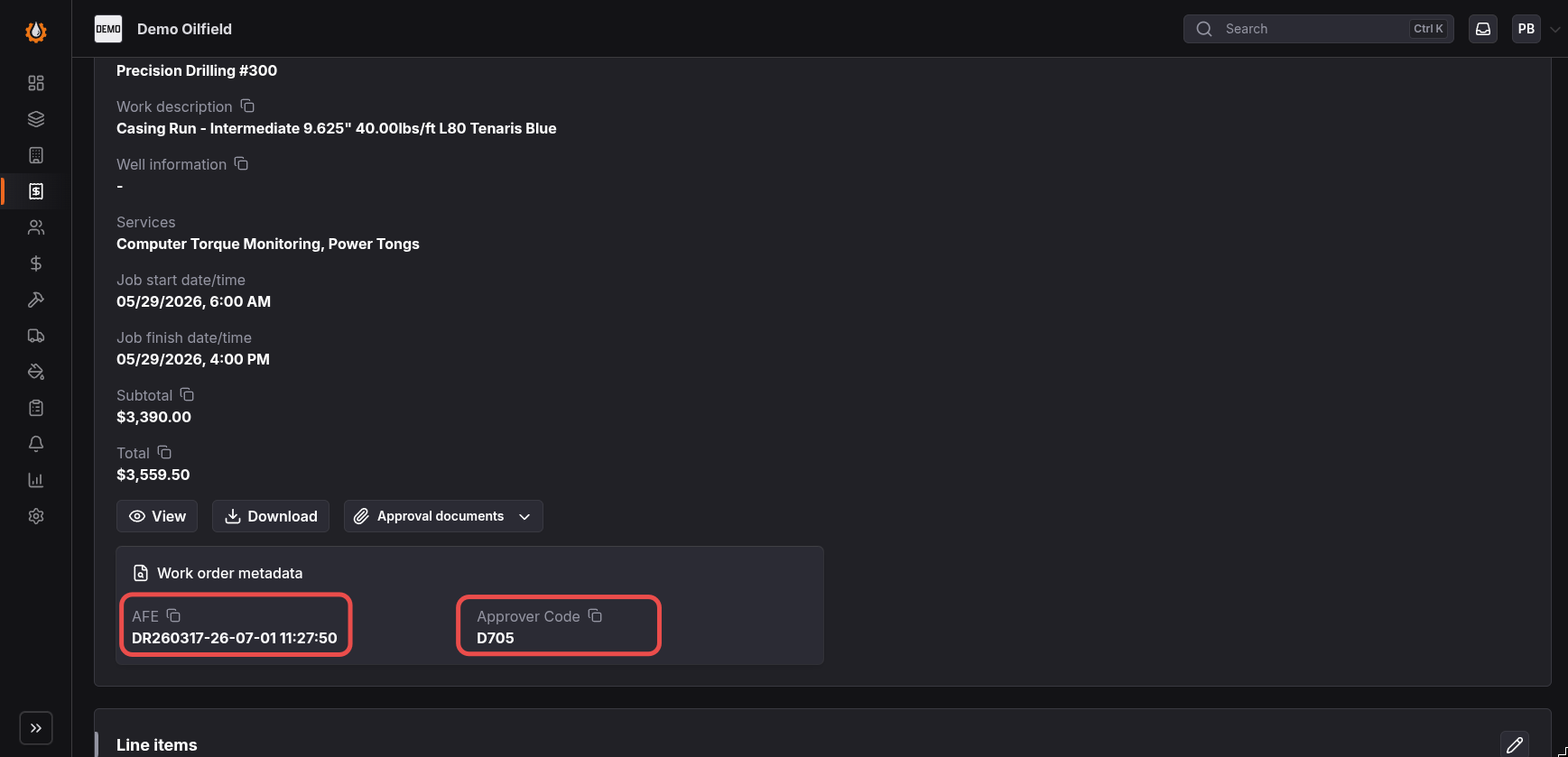
An extraction model connects a supported document type with one or more metadata mappings. Each mapping defines the value to extract and the label FieldWRX displays for that value.
For example, a work order model could extract:
- An AFE number and display it as AFE.
- An approval code and display it as Approver Code.
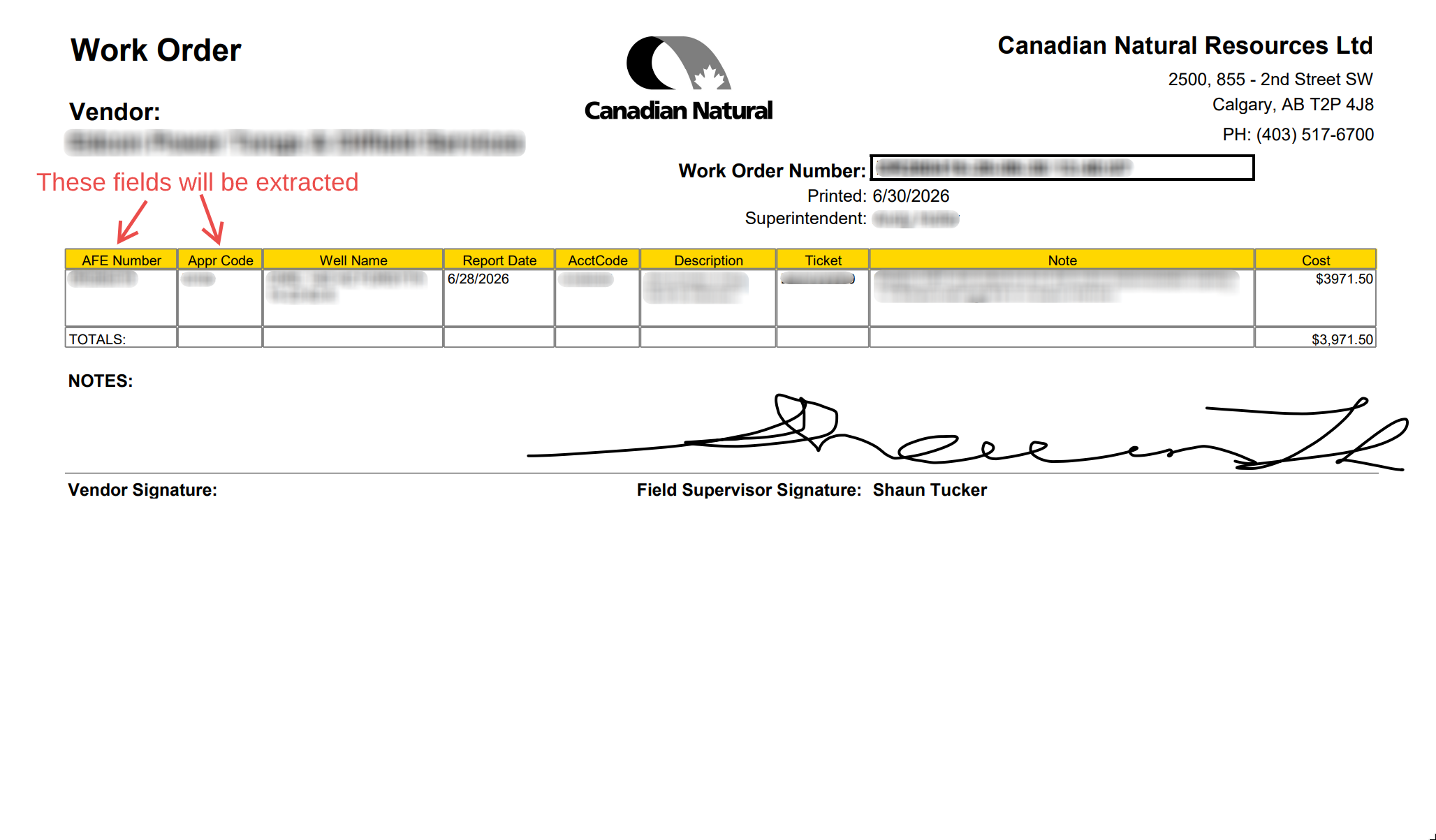
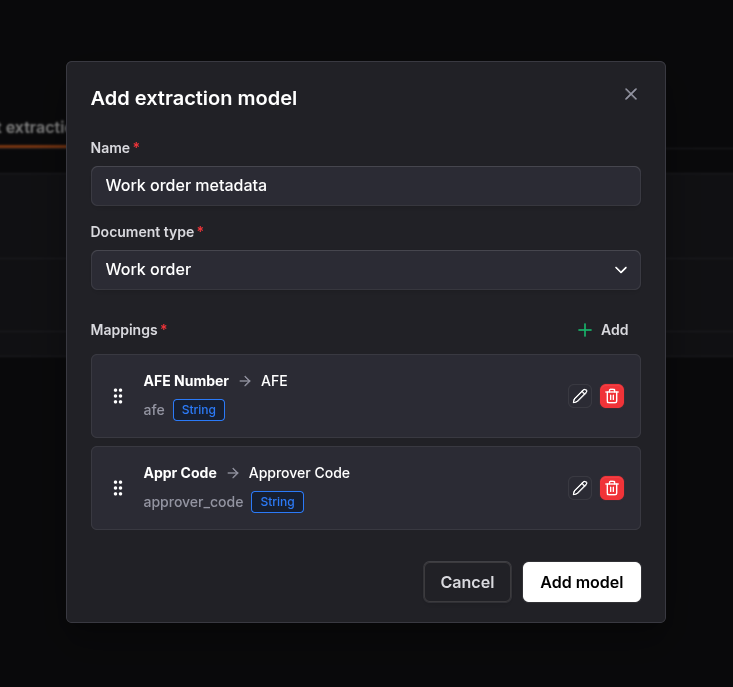
When a consultant uploads the corresponding work order while approving an invoice approval request, FieldWRX processes the document with the configured model. The extracted metadata is then displayed with the billing document for users to review.
Configure an Extraction Model
Each model requires a name, a document type, and one or more metadata mappings. Within the model, mappings can be added, edited, removed, or reordered.
Each mapping identifies the extraction field, the label users will see, and the value type. Choose labels that billing users will recognize and only extract metadata they need to review or process the document.
Review Extracted Metadata
Extraction reduces manual entry, but users should compare extracted values with the uploaded document before relying on them for billing.
If a value is missing or incorrect, confirm that the uploaded document matches the model’s document type and review the customer’s mappings. Update the extraction model when a customer’s document format or required billing references change.
Activity
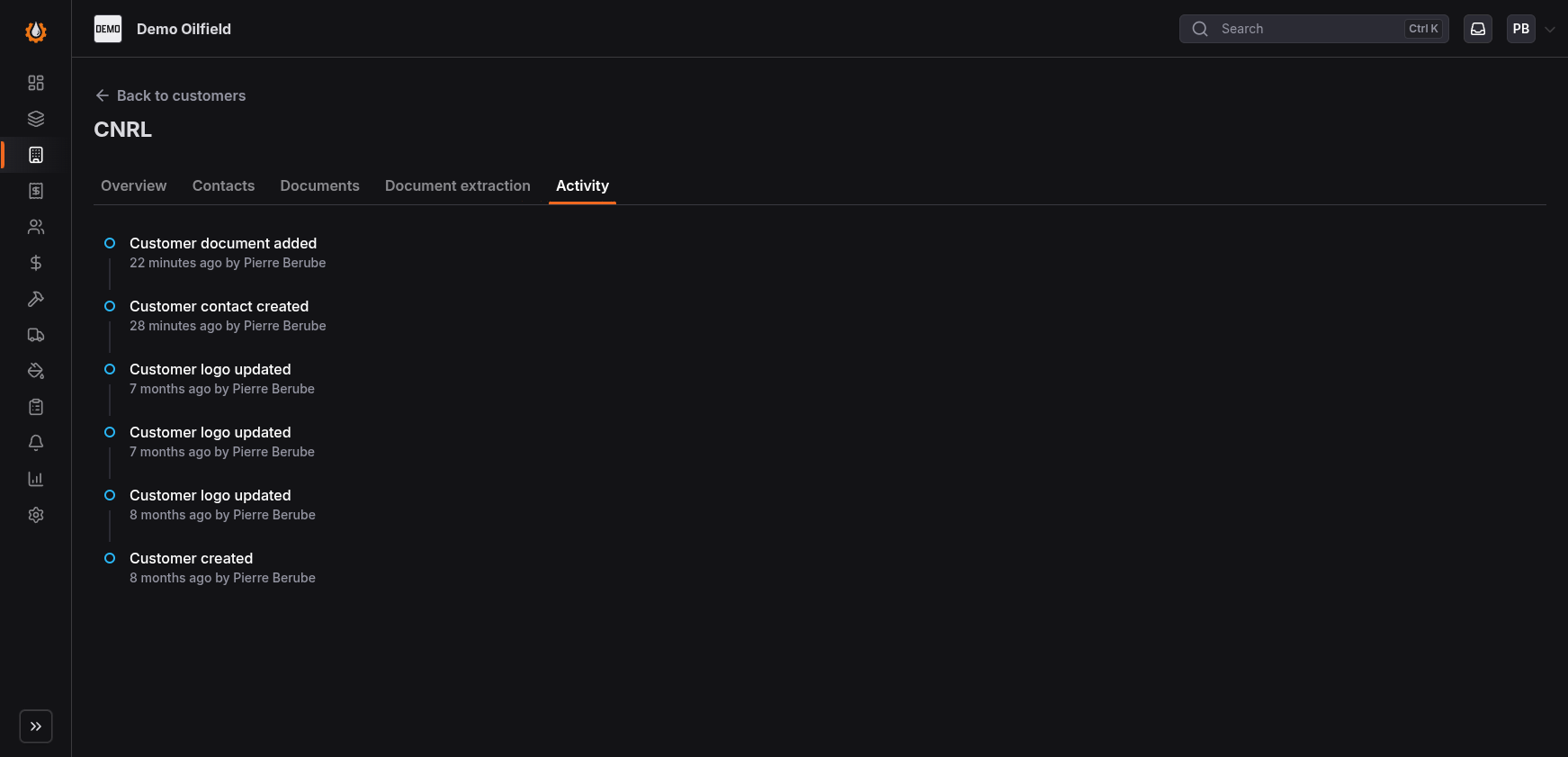
The Activity tab provides a chronological history of actions taken on the customer record. Each entry identifies the action, when it occurred, and the system user who performed it.
Use the activity feed to investigate a recent change or confirm that a customer maintenance task was completed.